
BGMI Account Link Guide 2026: Link, Transfer & Never Lose Your Progress
You’ve spent ₹5,000 on UC. You’ve unlocked three X-Suits. Your KD ratio finally crossed 4.0. You’ve reached Crown II after six months of grinding.
Then your phone dies. You buy a new one. You install BGMI. And everything — every skin, every stat, every rupee — is gone. Because you never linked your account.
This nightmare happens to thousands of Indian BGMI players every month. The search results for “BGMI account link” are dominated by scattered YouTube tutorials, outdated 2022 guides that don’t cover current options, and Krafton support pages buried in technical language.
This guide covers every linking method available in May 2026, explains exactly what happens to your data with each platform, walks you through fixing the most common link failures, and shows you how to transfer your account safely between devices without losing a single UC.
Why Linking Your BGMI Account Is Non-Negotiable
If you take one thing from this guide, take this: an unlinked BGMI account is a ticking time bomb. Here’s exactly what you risk by playing as a guest.
What Happens When You Don’t Link
Device loss = account loss. If your phone gets damaged, stolen, or factory reset, your guest account data — every skin, every tier rank, every UC purchase — is permanently gone. There is no recovery mechanism for unlinked accounts.
No cross-device play. Guest accounts are locked to a single device. You can’t play the same account on a tablet and phone. You can’t log in on a friend’s device when yours is charging.
No purchase restoration. If you bought UC as a guest and then reinstall BGMI, those purchases cannot be restored because there’s no linked platform to verify the transaction history against.
Limited support access. Krafton’s customer support can only assist with account recovery if the account is linked to a recognized platform. Guest account issues receive minimal support because there’s no way to verify ownership.
What Linking Actually Does
When you link your BGMI account to a platform like Google or Facebook, your game data — including tier rank, inventory, UC balance, season history, and settings — is synced to that platform’s cloud servers. This means:
-
Your account survives device changes, reinstalls, and factory resets
-
You can log into the same account on multiple devices (though not simultaneously)
-
Purchases are tied to your linked platform and can be restored
-
Krafton support can verify your account ownership and assist with recovery
Complete Guide: How to Link Your BGMI Account
Linking takes two minutes. Here’s the step-by-step for every supported platform as of May 2026.
Before You Start
Open BGMI and go to the main lobby. Tap the Settings gear icon in the bottom-right corner. Navigate to the Account tab. This is where all linking options live.
Link with Google (Recommended for Most Players)
Google linking is the most reliable option for Android users. It ties your account to your Google Play account, which also handles all your UC purchase receipts.
Step-by-step:
-
In the Account tab, tap the Google icon
-
Select the Google account you want to link (if you have multiple, choose the one you use for Google Play purchases)
-
Tap Allow when prompted to grant BGMI access to your basic profile information
-
You’ll see a confirmation: “Account linked successfully”
-
A green link icon now appears next to Google in your Account settings — this means it’s active
What data is saved: All game progress, inventory, UC balance, settings, and purchase history.
Best for: Android users, players who purchase UC through Google Play, and anyone who wants the simplest recovery process.
Link with Facebook
Facebook linking was the most popular method before Google linking became robust. It’s still widely used and works cross-platform.
Step-by-step:
-
In the Account tab, tap the Facebook icon
-
A Facebook login page will open — log in with your Facebook credentials
-
Tap Continue when prompted to grant BGMI profile access
-
You’ll see confirmation: “Account linked successfully”
What data is saved: All game progress, inventory, UC balance. Friend sync is an additional benefit — you’ll see which Facebook friends play BGMI.
Troubleshooting: If you’re stuck on a blank white screen after tapping Facebook, clear your browser cache. Go to Settings → Apps → Chrome → Storage → Clear Cache. Return to BGMI and try again. This resolves 90% of Facebook link failures.
Best for: Players who want friend sync features, cross-platform users (works on both Android and iOS), and those who already linked on older BGMI versions.
Link with Twitter / X
Twitter linking provides a clean, simple connection without the friend-permission complexity of Facebook.
Step-by-step:
-
In the Account tab, tap the Twitter icon (may show as X logo)
-
Log into your Twitter account when prompted
-
Authorize BGMI to access your profile
-
Confirmation will appear
Best for: Players who want a social media link without Facebook’s permissions, and those active on gaming Twitter communities.
Link with Apple ID (iOS Users)
Apple ID linking is available for iPhone and iPad players. It’s the most secure option for iOS users because it uses Apple’s built-in authentication.
Step-by-step:
-
In the Account tab, tap the Apple ID icon
-
Authenticate using Face ID, Touch ID, or your Apple ID password
-
Choose whether to share or hide your email address
-
Confirmation will appear
Best for: iOS users who want maximum security, and players in the Apple ecosystem who switch between iPhone and iPad.
Link with VK (Vkontakte)
VK is a Russian social media platform, but BGMI supports it for players who use the service. It’s less common in India but available.
Step-by-step:
-
In the Account tab, tap the VK icon
-
Log into your VK account
-
Authorize BGMI
-
Confirmation will appear
Link with WeChat
WeChat linking exists primarily for players with Chinese social media accounts. It’s rarely used by Indian players but available as an option.
What platforms you CANNOT link: As of May 2026, BGMI does NOT support linking to phone numbers, email addresses directly, or Instagram. The available platforms are Google, Facebook, Twitter/X, Apple ID, VK, and WeChat.
The “Account Already Linked” Problem: How to Fix It
This is the most common linking error and the most frustrating. You tap Google, and BGMI says: “This account is already linked to another BGMI profile.”
What This Means
Your chosen platform (Google, Facebook, etc.) is already associated with a different BGMI account. This typically happens when:
-
You linked on an old device and forgot
-
You created a second BGMI account without realizing
-
Someone else used your Google account to play BGMI on their device
How to Fix It
Option 1: Find and unlink the old account
-
Log into BGMI on the old device (if you still have access)
-
Go to Settings → Account
-
Tap the linked platform icon and select Unlink
-
Return to your current device and link again
Option 2: Use a different platform
If you can’t access the old device, link to a different platform instead. If Google is taken, use Facebook or Twitter.
Option 3: Contact Krafton Support
As a last resort, contact in-game customer support. You’ll need to provide proof of account ownership, including purchase receipts if available. This process can take 1-2 weeks and is not guaranteed to succeed.
Common Link Error Codes and Solutions
“Link Failed (Code: 434)”
This error occurs when there’s a temporary server issue on Krafton’s end or when your internet connection is unstable during the linking process.
Fix:
-
Switch from mobile data to Wi-Fi (or vice versa)
-
Restart BGMI completely
-
Try linking again
-
If it persists, wait 1-2 hours and try again — server issues are usually temporary
“Authorization Failed”
This means the platform (Google, Facebook, etc.) rejected the connection request, not Krafton.
Fix:
-
Check that you’re logged into the correct Google/Facebook account on your device
-
For Facebook: Clear your browser cache and cookies, then try again
-
For Google: Go to Settings → Google → Manage Google Account → Security → Third-party apps and check if BGMI is blocked
“Network Error”
A generic connectivity problem between your device and Krafton’s servers.
Fix:
-
Toggle Airplane Mode on for 15 seconds, then off
-
Connect to a different network (WiFi vs mobile data)
-
Restart your router if on WiFi
-
Try again
How to Transfer Your BGMI Account to a New Phone
Congratulations on the new phone. Here’s exactly how to move your BGMI account without losing anything.
Android to Android Transfer
-
On your new phone, install BGMI from the Google Play Store
-
Log in using the same Google account you linked on your old phone
-
BGMI will automatically detect your linked account and restore all data
-
All inventory, UC, tier rank, and settings will appear exactly as they were
Android to iPhone Transfer
-
On your iPhone, install BGMI from the Apple App Store
-
At the login screen, choose the platform your account is linked to (Facebook, Twitter, etc.)
-
Log in with those credentials
-
Your account data transfers across platforms
Important: UC purchased through Google Play does NOT transfer to iOS. The UC balance will show on your iPhone, but you cannot use Google Play-purchased UC on iOS due to platform restrictions. Similarly, UC purchased through Apple cannot be used on Android.
iPhone to Android Transfer
Same process as above, but in reverse. Install BGMI on your new Android device, log in with your linked platform credentials, and your data transfers.
What transfers: All inventory items, tier rank, season history, settings, and most UC balance.
What doesn’t transfer: Platform-specific UC purchases may not be usable on the new platform.
Frequently Asked Questions
How do I link my BGMI account to Google?
Go to Settings → Account in the BGMI lobby. Tap the Google icon, select your Google account, and confirm. Your progress, inventory, and purchases will now be saved to your Google account and recoverable on any device.
Can I link my BGMI account to multiple platforms?
Yes. BGMI supports linking multiple platforms to a single account. For example, you can link both Google and Facebook. This provides a backup — if one platform has login issues, you can use the other.
What happens if I unlink my BGMI account?
Unlinking removes the platform connection, but your game data isn’t immediately deleted. However, you’ll lose the ability to recover the account if you change devices. Always have at least one active link before unlinking an old platform.
I changed my phone and lost my BGMI account. How do I get it back?
If your account was linked to Google, Facebook, or another platform, simply install BGMI on your new phone and log in with those same credentials. Your account will restore automatically. If your account was a guest account with no link, it cannot be recovered.
Why does my BGMI account linking fail?
Common causes include: unstable internet connection, Krafton server issues, the platform already being linked to another BGMI account, or browser cache problems blocking Facebook authorization. Try switching networks, clearing your browser cache, and restarting BGMI.
Is it safe to link my Facebook account to BGMI?
Yes. Krafton only accesses basic profile information needed for account identification and friend sync. However, if your Facebook account gets hacked or banned, you may lose access to your BGMI account. For maximum security, link to Google (Android) or Apple ID (iOS) as your primary platform.
What happens to my UC when I transfer accounts between Android and iPhone?
Your UC balance transfers and is visible on both platforms, but UC purchased through Google Play may not be usable on iOS, and UC purchased through Apple may not be usable on Android. This is a platform restriction, not a Krafton restriction.
Can I play the same BGMI account on two devices?
You can log into the same linked account on multiple devices, but not simultaneously. Logging in on a second device will log you out of the first device. Progress syncs across both, so you can play on your phone during the day and tablet at night.
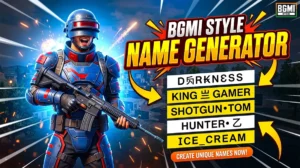
BGMI style name generator
BGMI Style Name Generator – Stylish Fonts, Symbols & Cool Tags Free Your BGMI name shows up everywhere…
BGMI KD Calculator — Check Your KD Ratio Instantly
BGMI KD Calculator – Check Your KD Ratio Instantly Are you curious about your Kill/Death (KD) ratio in Battlegrounds Mobile…
BGMI Invisible Name Copy Paste Tool — Blank Space Characters
About This BGMI Invisible Space Tool You’re here because you searched for a way to add blank spaces…

BGMI Symbols Copy Paste
Best BGMI Name Symbols (300+ Stylish & Unique Copy-Paste Characters) Want to make your BGMI profile stand out in the…

BGMI Sensitivity Code Generator
Free BGMI Sensitivity Code Generator: No Recoil in 2026 Are you tired of copying the wrong pro player…
BGMI Account Value Estimator – Check Account Price
💰 How Much Is Your BGMI Account Worth in 2026? If you’ve spent thousands of UC on Mythic…