
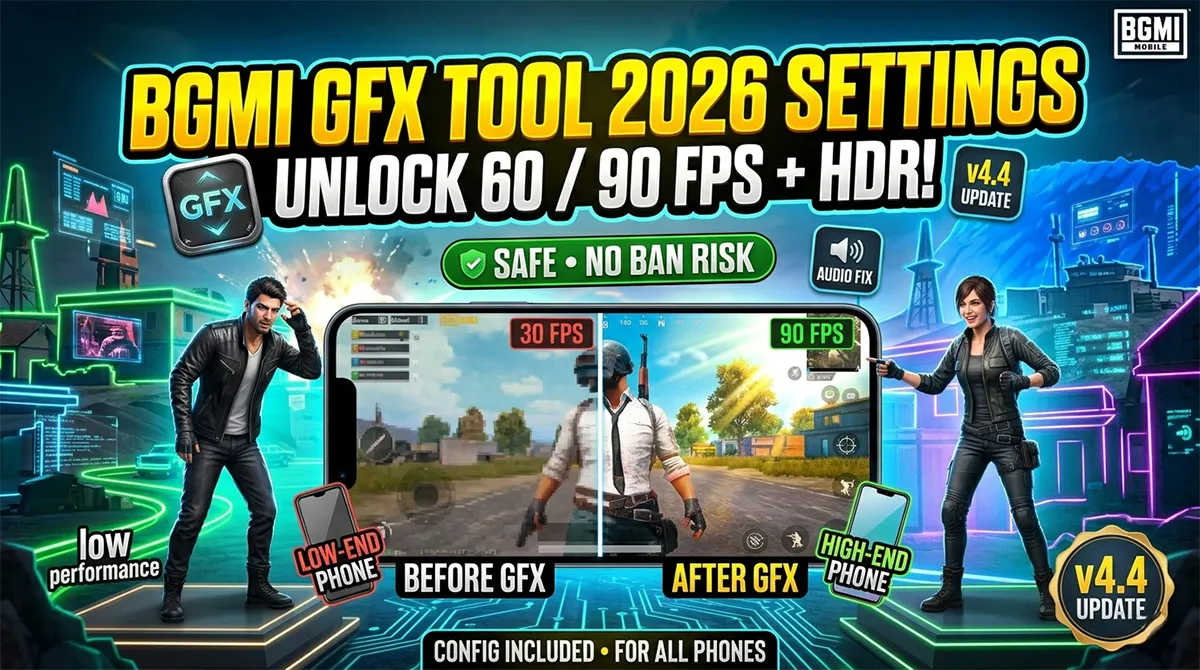
BGMI GFX Tool Settings 2026 Unlock 60/90 FPS, HDR & Smooth Gameplay on Low-End Phones
Your BGMI runs at 25 FPS on Smooth graphics while a streamer with your exact same phone posts gameplay that looks like a different game entirely.
The difference isn’t a better device. It’s a GFX tool — a third-party configuration app that unlocks graphics settings Krafton hides from you based on your phone model. But here’s the problem every guide skips: the wrong GFX configuration triggers BGMI’s anti-cheat and gets your account banned. The right one gives you buttery 60 FPS with zero risk.
This guide covers everything. Which GFX tools work in 2026 after the 4.4 update. Exactly what settings to use based on how much RAM your phone has. The specific settings that trigger bans versus the ones that don’t. And how to fix the audio glitch that breaks your sound after applying a GFX config.
If you’re on a budget phone and tired of losing gunfights because your screen looks like a slideshow, this is your fix.
What Is a BGMI GFX Tool and Why Does Krafton Hide Settings From You?
A GFX tool is a third-party app that edits BGMI’s configuration files to unlock graphics options that don’t appear in your in-game settings menu.
Here’s why you need one. When you install BGMI, the game reads your phone’s hardware specifications — RAM, processor, GPU — and decides which graphics presets to show you. On a 2GB RAM phone, you might only see Smooth graphics with Low frame rate. On a 4GB phone, Balanced with Medium. But these restrictions are artificially conservative. Many phones can handle higher settings than Krafton’s auto-detection allows.
What a GFX tool can unlock:
-
HDR graphics on phones that only show Smooth or Balanced
-
Extreme (60 FPS) or Ultra Extreme (90 FPS) frame rates even if your settings menu caps at Medium
-
Disable shadows to reduce GPU load and improve visibility (enemies hide in shadows)
-
Disable anti-aliasing for sharper movement tracking at the cost of slight jagged edges
-
Adjust rendering resolution to balance visual quality against performance
Important clarity: A GFX tool does not modify game files in the way hacks do. It changes a local configuration file (Active.sav or similar) that tells BGMI “this device can run these settings.” The game client remains unmodified. This distinction is central to understanding ban risk — which we’ll cover next.
Is Using a GFX Tool Safe? The Ban Risk Question Answered Honestly
Let’s address this directly because every competing guide either skips it or lies about it.
Can you get banned for using a GFX tool? Technically, yes. GFX tools violate BGMI’s terms of service under “third-party application interference.” Krafton’s official position is that any external app touching BGMI files is prohibited.
How likely is a ban? Based on community reports spanning 2023-2026, GFX-related bans are extremely rare — but they do happen under specific circumstances. Here’s what actually triggers detection:
| Action | Ban Risk | Explanation |
|---|---|---|
| Basic config changes (FPS unlock, graphics preset) | Very Low | Millions of players do this daily; Krafton rarely enforces |
| Repeated rapid config switching (5+ changes in one session) | Low-Medium | Abnormal config file activity flags the anti-cheat |
| Combining GFX tool with any cheat/hack/mod | High | The GFX tool alone isn’t the issue — the cheat detection catches the other app |
| Using outdated GFX tools after a major BGMI update | Medium | Old tools may modify files that the new anti-cheat explicitly monitors |
| Streaming/recording while using obvious HDR on a Potato phone | Low-Medium | Manual reports from other players can trigger review |
| Logging in via unofficial app stores or modified APKs | High | Not related to GFX — but often confused with it |
The realistic risk assessment: If you use a reputable GFX tool, apply settings once, and play normally without combining it with cheats, your ban probability is approaching zero. The anti-cheat primarily hunts aimbots, wallhacks, and memory modifiers — not config file edits.
Common Mistake: Panicking and switching GFX settings before every match. This generates abnormal config file activity that looks suspicious. Set your config once. Leave it alone. Play.
Quick Note: This is not legal advice. GFX tools violate TOS. Krafton could theoretically ban every GFX user tomorrow, though they’ve shown no indication of doing so. Use at your own informed risk.
Which GFX Tool Should You Use in 2026?
Multiple apps claim to optimize BGMI. Here are the ones that actually work post-4.4 update:
| GFX Tool | Best For | Current Status (May 2026) |
|---|---|---|
| PGT Pro (Paid) | Most reliable, updated frequently, best configuration depth | Working — actively updated |
| Apex GFX Tool | Specific low-end phone presets, clean interface | Working — recently updated |
| Config File Download (Manual method) | Zero app installation, lowest ban risk | Working — universal method |
| Gamers GL Tool | One-tap optimization with decent presets | Working — spotty on some Xiaomi phones |
| ZeroGFX | Minimalist, lightweight, ad-free | Working — fewer customization options |
Pro Tip: PGT Pro costs money but gets updated within 48 hours of every BGMI patch. Free tools sometimes take weeks to update, leaving you with broken configurations after major updates. If you’re serious about consistent performance, the paid option pays for itself in avoided frustration.
Device-Specific GFX Settings by RAM Tier
This is the section every other guide misses. The “best” GFX settings don’t exist universally — they depend entirely on your phone’s RAM, processor, and thermal behavior.
Tier 1: 2GB RAM Phones (Budget — Redmi 9A, Realme C11, etc.)
Your priority: Stability over visuals. Your phone thermal-throttles within 15-20 minutes of gameplay. Pushing settings too high causes frame drops during gunfights — exactly when you need consistency.
| Setting | Recommended Value | Why |
|---|---|---|
| Graphics | Smooth | Anything higher causes stutter in close fights |
| Frame Rate | High (40 FPS) or Ultra (50 FPS) | Extreme (60 FPS) causes heating and throttling on 2GB |
| Style | Classic | Colorful reduces visibility; realistic adds GPU load |
| Shadow | Disabled | Single biggest performance gain on 2GB phones |
| Anti-Aliasing | Disabled | Saves GPU cycles; minor visual tradeoff |
| Rendering | 70-80% | Below 100% reduces GPU load significantly |
| MSAA | 1x or Disabled | Higher values destroy performance on 2GB |
Expected outcome: Stable 40-50 FPS on Smooth with no shadow. Playable competitive experience. Your phone will still heat up but won’t throttle into unplayable territory.
Tier 2: 4GB RAM Phones (Mid-Range — Redmi Note 10, Realme 8, Poco M3, etc.)
Your priority: Balance. You can push for 60 FPS but need to manage heat. This is the most common BGMI phone tier — optimizing here matters for the largest player base.
| Setting | Recommended Value | Why |
|---|---|---|
| Graphics | Smooth or Balanced | Smooth = max FPS stability; Balanced = slightly better visuals without major cost |
| Frame Rate | Extreme (60 FPS) | Your phone can handle it; lock it via GFX if not showing |
| Style | Classic or Colorful | Personal preference — performance difference is minimal |
| Shadow | Disabled | Even at 4GB, shadows eat GPU budget better spent on FPS |
| Anti-Aliasing | Disabled or 2x | 2x if you notice jagged edges bothering your aim |
| Rendering | 90-100% | Close to native resolution without overloading |
| MSAA | 1x or 2x | 2x only if experiencing image quality issues |
Expected outcome: Consistent 55-60 FPS on Smooth/Balanced. Occasional dips to 50 FPS in heavy smoke/multiple squad scenarios. Fully competitive.
Tier 3: 6GB+ RAM Phones (Flagship — Poco F5, iQOO Neo, OnePlus Nord, etc.)
Your priority: Maximize quality while maintaining competitive frame rates. Your hardware can handle almost everything — the GFX tool primarily unlocks options that BGMI’s auto-detect unnecessarily hides.
| Setting | Recommended Value | Why |
|---|---|---|
| Graphics | HDR or Ultra HDR | Your phone can run it. Enjoy the game looking gorgeous. |
| Frame Rate | Ultra Extreme (90 FPS) | If your display supports 90Hz, unlock this — the competitive advantage is real |
| Style | Colorful | Vibrant colors improve enemy spotting on high-res displays |
| Shadow | Enabled (Low) | Soft shadows add depth without meaningful performance hit |
| Anti-Aliasing | 2x or 4x | Clean edges improve long-range target acquisition |
| Rendering | 100% | Native resolution; your GPU isn’t the bottleneck |
| MSAA | 2x | Crisp visuals without meaningful frame cost |
Expected outcome: Locked 60 FPS on HDR or 90 FPS on Smooth/Balanced. Zero compromise experience. If your phone thermal-throttles after 45+ minutes, drop graphics one tier during extended sessions.
Step-by-Step: How to Apply GFX Settings Safely
Method 1: Using a GFX Tool App (PGT Pro Example)
-
Close BGMI completely. Force-stop it from your phone’s app settings — don’t just minimize.
-
Open your GFX tool app (PGT Pro, Apex, ZeroGFX, or your chosen tool).
-
Select BGMI from the app list. The tool auto-detects your installed version.
-
Configure settings using the tier recommendations above for your RAM bracket.
-
Apply and Launch. The tool saves the config and opens BGMI.
-
Verify in-game. Check Settings → Graphics. You should see your unlocked options now available.
-
Do NOT change settings in-game afterward. Leave the GFX-applied config as-is. Changing settings from within BGMI can overwrite the GFX config.
-
Play one Training Ground match to confirm stability before entering ranked.
Method 2: Manual Config File Method (No App — Lowest Ban Risk)
This method edits BGMI’s configuration file directly using your phone’s file manager. No third-party app installation required.
-
Install a file manager that supports Android/data access (ZArchiver or Solid Explorer recommended).
-
Navigate to:
Android/data/com.pubg.imobile/files/UE4Game/ShadowTrackerExtra/ShadowTrackerExtra/Saved/Config/Android/ -
Find the file:
Active.savorUserCustom.ini(filename varies by BGMI version). -
Open with text editor. You’ll see lines of configuration text.
-
Modify key values — commonly edited lines include frame rate caps, shadow quality, and anti-aliasing toggles.
-
Save the file. Do not change the file extension.
-
Launch BGMI and verify settings in Training Ground.
Pro Tip: Before editing anything, copy the original file to a backup folder. If something breaks, paste the backup back to restore factory settings. This has saved countless players from needing a full reinstall after a bad config edit.
The Audio Glitch Fix: Why Your Sound Breaks After GFX Config (and How to Solve It)
The most common GFX tool side effect: your audio cuts out, becomes muffled, or loses directional accuracy after applying a config. This isn’t your phone — it’s the tool.
Why it happens: Some GFX tools override AudioQuality settings in the config file when applying graphics changes. This sets your audio to Low (0) even though your device supports High (2).
The fix (3 methods):
Method A — In-Game Fix:
-
Open BGMI → Settings → Audio
-
Set Audio Quality to High
-
Some GFX configs lock this setting. If grayed out, use Method B.
Method B — GFX Tool Fix:
-
Open your GFX tool before launching BGMI
-
Find Audio settings in the tool (PGT Pro has a dedicated Audio tab)
-
Set Audio Quality to High or Auto
-
Apply and relaunch BGMI
Method C — Manual Config Fix:
Edit the config file and ensure the audio quality line reads AudioQuality:2 (0=Low, 1=Medium, 2=High). Save and relaunch.
If audio still breaks: Some specific phone models (notably certain Xiaomi/Redmi devices on MIUI 13+) have a known conflict. As a workaround, connect Bluetooth headphones before launching the game, then switch to wired or speaker after the lobby loads.
BGMI style name generator
BGMI Style Name Generator – Stylish Fonts, Symbols & Cool Tags Free Your BGMI name shows up everywhere…
BGMI KD Calculator — Check Your KD Ratio Instantly
BGMI KD Calculator – Check Your KD Ratio Instantly Are you curious about your Kill/Death (KD) ratio in Battlegrounds Mobile…
BGMI Invisible Name Copy Paste Tool — Blank Space Characters
About This BGMI Invisible Space Tool You’re here because you searched for a way to add blank spaces…
BGMI Symbols Copy Paste
Best BGMI Name Symbols (300+ Stylish & Unique Copy-Paste Characters) Want to make your BGMI profile stand out in the…
BGMI Sensitivity Code Generator
Free BGMI Sensitivity Code Generator: No Recoil in 2026 Are you tired of copying the wrong pro player…
What Changed in the BGMI 4.4 Update (May 2026) for GFX Tools
The BGMI 4.4 update introduced changes that affect GFX tool users:
-
Config file location remained the same. Manual editing methods still work.
-
Some GFX tools broke temporarily. PGT Pro and Apex updated within 48 hours. Lesser-known tools may still be non-functional.
-
90 FPS option visibility changed. Krafton adjusted device detection logic — some phones that previously showed 90 FPS natively now require GFX unlock again.
-
Anti-cheat scanning frequency increased slightly. Additional config file integrity checks run at launch. This doesn’t target GFX tools specifically but reinforces the advice: set your config once and leave it alone.
Troubleshooting Common GFX Issues
| Problem | Likely Cause | Solution |
|---|---|---|
| Settings reset after restart | GFX config overwritten by game | Reapply config, then do NOT open in-game graphics menu |
| Game crashes on launch | Unsupported setting for your hardware | Reset to lower tier; your phone can’t handle what you asked for |
| Black screen after GFX apply | GPU driver conflict | Clear BGMI cache, reapply with lower settings |
| Overheating within 10 minutes | Settings too aggressive for thermal capacity | Reduce FPS target by one tier; disable shadows |
| GFX tool says “Device Not Supported” | Tool outdated for current BGMI version | Switch to PGT Pro or manual config method |
| Frame drops during gunfights | CPU/GPU throttling under combined load | Lower graphics preset; FPS priority over visuals |
Frequently Asked Questions
What is the best GFX tool for BGMI in 2026?
PGT Pro is the most reliable paid option — it updates within 48 hours of every BGMI patch and offers the deepest configuration control. For free alternatives, Apex GFX Tool and ZeroGFX work well but may have brief downtime after major updates.
Will I get banned for using a GFX tool in BGMI?
The realistic ban risk for basic GFX usage (FPS unlock, graphics preset changes) is extremely low. Millions of players use these tools. However, GFX tools technically violate BGMI’s terms of service. To minimize risk: use reputable tools, set your config once, and never combine a GFX tool with any cheat or hack application.
How do I unlock 90 FPS in BGMI?
Install a GFX tool (PGT Pro recommended), select BGMI, set Frame Rate to Ultra Extreme (90 FPS), apply, and launch. Your phone must have a 90Hz or higher refresh rate display to benefit. Additionally, go to BGMI Settings → Graphics and ensure the frame rate option now shows the unlocked value.
Why does my audio break after using a GFX tool?
GFX tools sometimes override the AudioQuality setting to Low (0) during configuration. Fix it by going to BGMI Settings → Audio → set to High, or configure Audio to High within your GFX tool before applying.
Can I use GFX tools on 2GB RAM phones?
Yes, but with conservative settings. Target 40-50 FPS on Smooth graphics with shadows disabled and rendering around 70-80%. Pushing 60 FPS on a 2GB phone causes overheating and frame drops during fights.
What changed with GFX tools after the BGMI 4.4 update?
Some GFX tools broke temporarily but PGT Pro and Apex updated within 48 hours. Krafton also adjusted 90 FPS device detection — phones that previously showed the option natively may now require GFX unlock again. Config file location remains unchanged so manual methods still work.
Is manual config editing safer than using a GFX tool app?
Technically yes. Manual config editing through a file manager doesn’t require installing a third-party app that interacts with BGMI, which means one less potential detection vector. However, the practical risk difference between manual editing and a reputable GFX tool is negligible.
Why do my GFX settings reset after I close BGMI?
Opening the in-game Graphics Settings menu after applying a GFX config can trigger an auto-detect that overwrites the GFX values. After applying a GFX config, do not open the in-game graphics menu. If you need to change something, use the GFX tool again.
Set It Once. Leave It. Play.
The players who get the most from GFX tools aren’t the ones endlessly tweaking settings between every match. They’re the ones who found their device’s sweet spot — the configuration that balances FPS, stability, and visuals for their specific phone — applied it once, and never opened settings again.
Find your RAM tier above. Copy the settings. Apply them. If something breaks, the fix table has your answer. Then close settings and grind.
Which settings worked best for your phone model? Drop your device name and config in the comments — it helps other players find their setup faster.


1 Discussion