
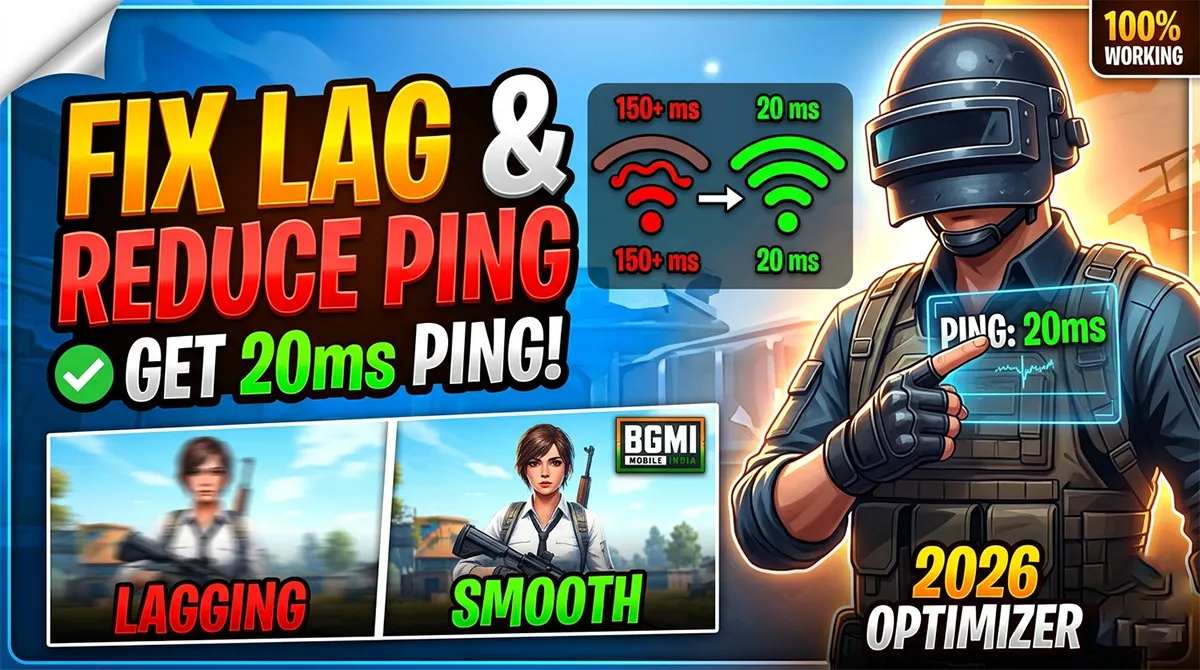
BGMI Ping Optimizer 2026: Fix Lag & Reduce Ping to 20ms
You peek a corner. You see the enemy. You fire three headshots. And then — you die. The death replay shows you standing still, never having fired a single bullet on the server.
That’s not bad aim. That’s bad ping.
High ping is the silent killer of BGMI gameplay. It doesn’t matter how good your sensitivity settings are, how expensive your phone is, or how many hours you’ve practiced in training grounds. If your connection is delivering your inputs 100 milliseconds late, you’re playing a different game than the opponent on 20ms.
The search results for “BGMI ping optimizer” are a mess. You’ll find generic “restart your router” advice, outdated guides from 2022, and — most dangerously — fake optimizer apps that promise magic ping reduction but actually risk your account ban.
This guide covers every legitimate way to reduce your BGMI ping in 2026: the new Smart Network Optimization feature, ISP-specific Private DNS setup, server selection strategy, and a clear warning about the fake optimizers you should never install.
What Ping Are You Actually Targeting?
Before fixing anything, you need a benchmark. BGMI displays your ping in the top-left corner once you enter a match. The number represents milliseconds — how long it takes for your action to reach the server and come back.
Mumbai server ping benchmarks for Indian players:
| Ping Range | Combat Experience | What You’ll Notice |
|---|---|---|
| 20ms – 40ms | Excellent | Near-instant bullet registration. You win the fair 1v1s. |
| 40ms – 60ms | Good | Minor peeker’s disadvantage. Slightly delayed hitmarkers. |
| 60ms – 80ms | Playable | Noticeable delay. Close-range suffers most. |
| 80ms – 120ms | Problematic | You die behind cover. Enemies appear to one-shot you. |
| 120ms+ | Unplayable | Movement desync, teleporting, server rejection risk. |
Target: If you’re above 80ms, the fixes below should get you into the 40ms-60ms range. If you’re already at 40ms, the advanced tweaks can push you toward 20ms-30ms.
The Mumbai server is the primary Indian server. If BGMI auto-selects Singapore because of a routing quirk, your base ping is already 70ms before anything else goes wrong. Always manually check your server selection first: Settings → Basic → Server → Mumbai.
ISP-Specific Optimization: Jio, Airtel, Vi, Fiber
Generic ping fixes fail because every Indian ISP routes traffic differently. Here’s what actually works for each provider.
ISP Ping Performance to Mumbai BGMI Server
| ISP | Type | Expected Ping | Peak Hour Impact (8-11 PM) | Hidden Issue |
|---|---|---|---|---|
| Jio 4G/5G | Mobile | 30ms – 55ms | Low (+5ms) | Wi-Fi Calling adds 15ms+ |
| Airtel 4G/5G | Mobile | 35ms – 65ms | Low | VoNR power saving interferes |
| Vi (Vodafone Idea) | Mobile | 60ms – 100ms | Medium (+10-20ms) | Infrastructure congestion |
| BSNL 4G | Mobile | 80ms – 120ms | High | Backup only for BGMI |
| Jio Fiber | Fiber | 35ms – 55ms | +5-15ms at peak | Router QoS not configured |
| Airtel Xstream | Fiber | 30ms – 50ms | Low | Best fiber option |
| Hathway / ACT | Fiber | 20ms – 50ms | Low | City-dependent routing |
Jio Mobile Fix: Turn Off Wi-Fi Calling
Jio delivers the best Mumbai server ping for most Indian cities. But there’s a hidden setting silently adding 15ms-40ms: Wi-Fi Calling.
When Wi-Fi Calling is enabled, Jio forces voice traffic through your WiFi network, adding latency to all other traffic on that connection. This is the single biggest ping killer for Jio users.
Fix: Settings → SIM → Jio → Wi-Fi Calling → Turn Off.
Additional Jio tips:
-
On 5G: Test LTE-only mode. New Jio 5G towers sometimes produce worse ping than 4G because network tuning is still in progress
-
APN setting: If you’re on Jio Postpaid, switch your APN to “Jio Postpaid” for different, sometimes better routing than prepaid
Airtel Mobile Fix: Disable VoNR
Airtel routing to Mumbai is consistently 5ms-10ms slower than Jio baseline. You can’t fix the infrastructure, but you can eliminate an interference source.
Fix: Settings → SIM → Mobile Networks → Airtel → Advanced → Turn off VoNR (Voice over New Radio). Airtel’s aggressive power saving on signal boost interferes with gaming traffic patterns.
Airtel’s advantage: Better Singapore server ping than Jio for South Indian players. If you’re in Chennai, Bangalore, or Hyderabad and getting 70ms+ to Mumbai, try switching to Singapore server — Airtel sometimes routes this better.
Vi and BSNL: Work With What You Have
Vi at 60ms-100ms and BSNL at 80ms-120ms aren’t suitable for competitive ranked play above Diamond tier. If these are your only options, the Private DNS setup and Smart Network Optimization below become critical.
Fiber Connections: The Best Option
Jio Fiber and Airtel Xstream both deliver excellent BGMI ping. Hathway and ACT Fiber have recorded the absolute lowest ping in India — some players report stable 20ms connections in Mumbai, Delhi, and Bangalore.
Fiber-specific optimization:
-
Connect to the 5GHz WiFi band (not 2.4GHz). The 2.4GHz band is saturated with neighbor routers, Bluetooth devices, and microwaves
-
Every wall between you and a 5GHz router adds roughly 5ms of ping. Stay in the same room
-
Enable QoS (Quality of Service) in your router settings and prioritize gaming traffic
The Ultimate BGMI Ping Fix Checklist (9 Steps)
Run through these in order. The first five deliver the biggest ping drops. The rest are incremental improvements that add up.
Fix 1: Enable Smart Network Optimization (NEW)
The BGMI 4.3 update introduced Smart Network Optimization, a feature buried in settings that most players still haven’t discovered. It allows the game to simultaneously use WiFi and mobile data, automatically switching to whichever provides the better connection at any given moment.
Krafton’s own performance data reports:
-
Ping reduction: 10% to 20%
-
Stuttering/choppiness reduction: 5% to 15%
-
Firing delay improvement: 5% to 15%
How to enable:
-
Open BGMI Settings
-
Navigate to Language & Network
-
Find the Network tab
-
Toggle on Smart Network Optimization
Your device must support dual-channel network functions. Both WiFi and mobile data need to be active for this to work. If you only have one connection active, the toggle won’t help.
Fix 2: Configure Private DNS
This is the most impactful single tweak for players whose ISP uses congested or unreliable routing. Your ISP’s default DNS server might be routing BGMI traffic through slow, indirect paths. Switching to Google’s DNS forces a direct route.
Step-by-step:
-
Open your phone’s Settings
-
Search for “Private DNS”
-
Select Private DNS provider hostname
-
Type:
dns.google(exactly as written — no spaces, no https://, no www) -
Tap Save
Many players report a 15ms-25ms drop from this alone.
Alternative DNS options:
-
1.1.1.1— Cloudflare DNS, sometimes faster than Google DNS for Southeast Asia routing -
8.8.8.8and8.8.4.4— Google Public DNS, most reliable for Indian ISPs
Test both for a few matches. Your ISP’s routing to each DNS server varies by city and provider.
Fix 3: Run Routine Repair
Corrupted game files can cause server desync that looks exactly like high ping. When a BGMI update downloads, patch files can get slightly corrupted, creating mismatches between what your client shows and what the server registers.
How to run Routine Repair:
-
Log out of your BGMI account
-
On the login screen, tap the Repair button (right side of the screen)
-
Check the Routine Repair box
-
Tap OK
-
Restart the game and let it download fresh patch files
This resolves desync issues that no amount of network tweaking will fix.
Fix 4: Select Mumbai Server Manually
BGMI sometimes auto-selects Singapore server based on a routing quirk, even when you’re in India. Singapore adds 30ms-50ms to your Mumbai ping.
Check every session: Settings → Basic → Server → Mumbai. Don’t assume the game selected correctly.
Some South Indian players on Airtel actually get better Singapore routing than Mumbai. If you’re in Tamil Nadu, Karnataka, Kerala, or Andhra Pradesh, test both servers for 5 matches each and keep the better one.
Fix 5: Switch to 5GHz WiFi Band
The 2.4GHz WiFi band is shared with every neighbor’s router, Bluetooth devices, cordless phones, and microwave ovens. The 5GHz band is faster, cleaner, and significantly lower latency.
How to switch:
-
Check if your router broadcasts both bands (look for a network name ending in “_5G”)
-
Connect to the 5GHz SSID
-
Stay in the same room — 5GHz has shorter range
The wall penalty is real: Each wall between you and a 5GHz router adds roughly 5ms of ping and doubles network jitter.
Fix 6: The Airplane Mode Network Reset
A quick network refresh forces your phone to reconnect to the nearest, strongest tower — abandoning a distant tower it might be clinging to from a previous location.
Steps:
-
Enable Airplane Mode for 10-15 seconds
-
Disable Airplane Mode
-
Your phone reconnects to the closest tower with fresh routing
Do this before every ranked session if you’ve been moving between locations.
Fix 7: Kill All Background Apps
WhatsApp media auto-download, Google Photos backup, Instagram Reels preloading, YouTube background playback — these silently consume bandwidth and spike your ping in unpredictable bursts.
Before every session:
-
Close WhatsApp, Instagram, Chrome, YouTube completely
-
Turn off auto-sync (Settings → Accounts → Auto-sync → Off)
-
On Android: Go to BGMI App Info → Data Usage → Background data → Off
-
Enable Game Mode if your phone has it (Realme Game Center, OnePlus Game Space, Xiaomi Game Turbo, Samsung Game Booster)
Fix 8: Disable Battery Saver and Power Saving
Aggressive power saving on Realme, Xiaomi, OnePlus, and Samsung phones throttles the WiFi radio and cellular modem. Your ping number might look fine, but the game feels terrible because the connection is being artificially restricted in bursts.
Disable before playing:
-
Battery Saver mode
-
Adaptive Battery
-
Any “power optimization” toggle in Game Space/Turbo settings that limits network access
Fix 9: Restart Your Router Properly
Not a reboot from the app. A physical power cycle.
Correct method:
-
Unplug the router from power
-
Wait a full 30 seconds (this clears the packet queue completely)
-
Plug it back in
-
Wait for all lights to stabilize
-
Launch BGMI
A 10-second reboot doesn’t clear the packet queue. The 30-second wait matters.
Common BGMI Server Errors and Quick Fixes
“Server is Busy — Error Code: restrict-area”
This error appears when BGMI’s servers detect you’re connecting from outside India, or when corrupted cached data in Chrome/WebView makes the game think you are in a restricted region.
Immediate fixes:
-
Clear Chrome cache: Chrome → Three dots → History → Clear browsing data → All time → Check Cookies + Cached images/files → Clear
-
Clear WebView cache: Settings → Apps → Android System WebView → Storage → Clear Cache
-
Check for dormant VPN: Look for a key icon in your notification shade. Turn off any VPN — even Indian-server VPNs trigger this error
-
Restart your internet router: Restarting assigns a new IP address if your previous one was misclassified
Connection Timeouts and “Server is Down”
Before troubleshooting your connection, verify the servers are actually online:
-
Check BGMI’s official Twitter/Instagram/Facebook for maintenance announcements
-
Look for in-game notification banners about scheduled downtime
-
Check community forums — if everyone’s down, it’s not your connection
The Ping-Frame Rate Connection Most Players Miss
“Lag” isn’t always ping. Frame drops produce identical symptoms — stuttering, unresponsive controls, enemies appearing to teleport.
If your ping meter shows 40ms but the game feels terrible, your frame rate is likely dropping below 30 FPS. This happens when:
-
Your phone thermally throttles during long sessions
-
Background apps are consuming CPU resources
-
Your graphics settings are too high for your device
Quick diagnostic: Play a Team Deathmatch and watch both your ping number and the frame smoothness. If ping is stable but movement is choppy, your problem is frame rate, not connection. Lower your graphics to Smooth and test again.
Critical Warning: Fake “Ping Optimizer” Scams
The search results for “BGMI ping optimizer” are contaminated with dangerous third-party apps. These are not legitimate tools — they’re either scams, cheat software, or both.
What to Avoid
GFX Tools labeled as “Ping Optimizer”: Apps like PUBGMI GFX Tool, TURBO GFX Tool, and BGMI GFX Tool claim to “fix lag” and “optimize ping.” They cannot fix your network connection — ping is determined by physical distance to servers, ISP routing quality, and network congestion. These tools only modify graphics configuration files, and Krafton’s anti-cheat system can detect these modifications as unauthorized game file tampering.
“Ping Booster” VPNs: These route your traffic through intermediate servers, which adds latency — not reduces it. A VPN claiming to reduce your ping from 80ms to 20ms is mathematically impossible. The extra server hop always adds time.
Paid “Optimizer APK” Downloads: Any file labeled “BGMI Ping Optimizer APK” or “Lag Fix APK” is either malware or a cheat tool. These files often contain keyloggers designed to steal your BGMI account credentials.
The Only Safe Optimization Methods
-
Built-in phone game modes (Realme Game Center, Xiaomi Game Turbo, Samsung Game Booster) — these manage CPU/GPU, not network
-
Official BGMI settings: Smart Network Optimization, server selection
-
System-level network configuration: Private DNS, 5GHz WiFi, Airplane Mode reset
If a tool asks for your BGMI login credentials, requests file modification permissions, or promises “guaranteed 20ms ping regardless of ISP” — it’s lying to you.
Frequently Asked Questions
What is the best BGMI ping optimizer app?
There is no legitimate BGMI ping optimizer app. Ping is determined by your physical distance to servers, ISP routing quality, and network congestion — no app can magically improve these factors. Use built-in features: Smart Network Optimization (BGMI Settings → Language & Network), Private DNS (dns.google), and your phone’s native Game Mode. Third-party “optimizer” apps are either ineffective or risk account bans for unauthorized game file modifications.
How can I reduce my BGMI ping from 80ms to 20ms?
Enable Smart Network Optimization first (10-20% reduction). Configure Private DNS to dns.google (15-25ms drop for many players). Run Routine Repair from the login screen to fix corrupted patch files. Manually select Mumbai server. Switch to 5GHz WiFi band. Turn off Wi-Fi Calling on Jio or VoNR on Airtel. Combined, these fixes can take a stable 80ms connection to 40ms-50ms. Getting to 20ms requires fiber internet (Hathway/ACT) and proximity to Mumbai.
Why does BGMI show “Server is Busy — restrict-area”?
This error occurs when BGMI servers detect you’re connecting from outside India, or when corrupted cached data in Chrome/WebView makes the game think you are in a restricted region. Clear your Chrome cache and Android System WebView cache, check for dormant VPN connections, and restart your router to get a new IP address.
Is Smart Network Optimization worth enabling?
Yes. Krafton’s own performance data shows it reduces ping by 10-20%, stuttering by 5-15%, and improves firing response by 5-15%. It allows BGMI to simultaneously use WiFi and mobile data, automatically switching to the better connection. Enable it in Settings → Language & Network → Network tab.
What’s the best DNS server for BGMI in India?
Google DNS (dns.google) is the most reliable for Indian ISPs. Set it up through Private DNS in your phone settings. Cloudflare (1.1.1.1) is a strong alternative that sometimes provides better routing for Southeast Asia connections. Test both for several matches to determine which works better with your specific ISP and city.
Can I use a VPN to reduce BGMI ping?
No. VPNs add extra server hops to your connection, which always adds latency. While they can technically bypass region-locked login errors, using them for gameplay makes ping worse — not better. Many VPNs also violate BGMI’s terms for Indian players and risk account action.
How do I change my BGMI server to Mumbai?
Go to Settings → Basic → Server → select Mumbai. Do this before every session — BGMI sometimes auto-selects Singapore based on a routing quirk. South Indian players on Airtel should test both Mumbai and Singapore for 5 matches each to determine which provides better ping for their specific location.

BGMI style name generator
BGMI Style Name Generator – Stylish Fonts, Symbols & Cool Tags Free Your BGMI name shows up everywhere…
BGMI KD Calculator — Check Your KD Ratio Instantly
BGMI KD Calculator – Check Your KD Ratio Instantly Are you curious about your Kill/Death (KD) ratio in Battlegrounds Mobile…

BGMI Invisible Name Copy Paste Tool — Blank Space Characters
About This BGMI Invisible Space Tool You’re here because you searched for a way to add blank spaces…

BGMI Symbols Copy Paste
Best BGMI Name Symbols (300+ Stylish & Unique Copy-Paste Characters) Want to make your BGMI profile stand out in the…

BGMI Sensitivity Code Generator
Free BGMI Sensitivity Code Generator: No Recoil in 2026 Are you tired of copying the wrong pro player…
Related BGMI Tools & Guides
-
BGMI Empty Space Copy Paste Tool — Style your IGN for the kill feed