
⚡ Quick Fix — No Time to Read?
Graphics → Smooth | Frame Rate → Extreme | Anti-Aliasing → Off | Shadows → Off | Auto-Adjust Graphics → Off | Style → Classic
Then: Clear cache → Close background apps → Restart phone → Play.
For detailed RAM-wise settings and advanced fixes, keep reading below. 👇
You’re in a 1v1 close-range fight, you scope in — and the game freezes for half a second. By the time your screen unfreezes, you’re already knocked. Sound familiar?
Lag in BGMI ruins more matches than bad aim ever will. And if you’re playing on a 4GB or 6GB RAM phone, you’ve probably tried everything — lowering graphics, closing apps, watching YouTube videos that promise “permanent lag fix” — and nothing sticks.
This guide is different. We’ve broken down every fix by RAM tier (4GB, 6GB, 8GB+), covered the exact in-game settings, Android developer options, network/ping optimization, heating solutions, and crash fixes — all in one place. No fluff, no “download this GFX tool” nonsense that gets your account banned.
Let’s fix your BGMI lag — permanently.
📑 What’s Inside This Guide
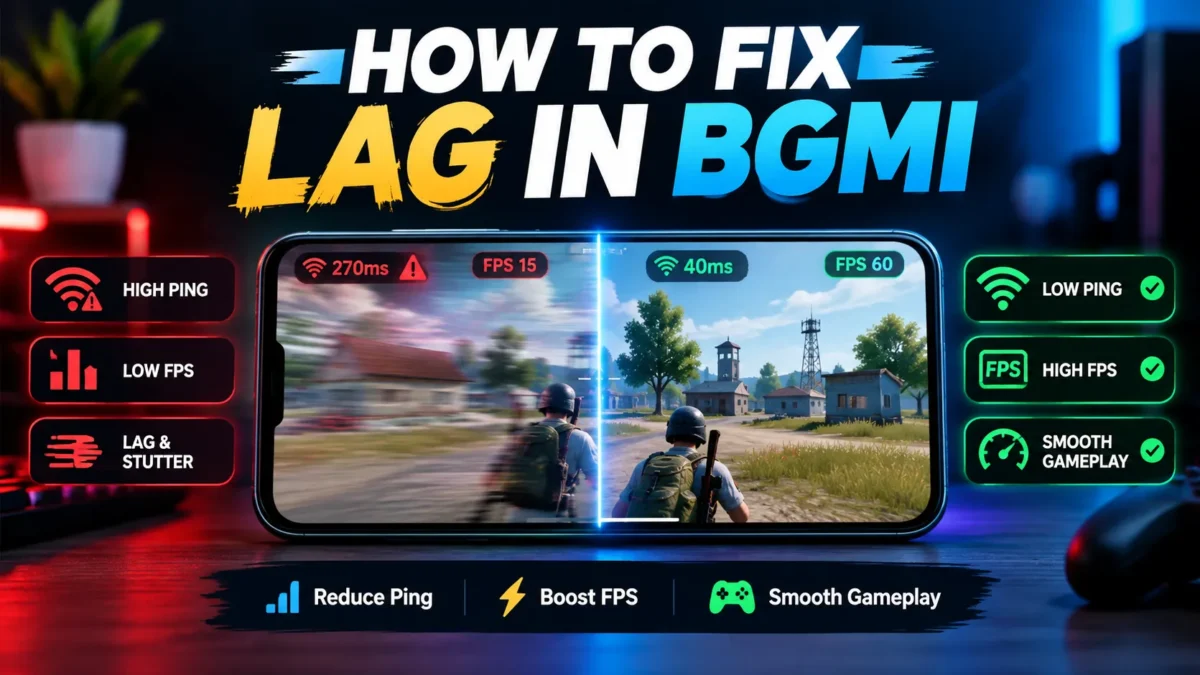
Why BGMI Lags — FPS Drop vs High Ping vs Crash
Before jumping into fixes, you need to understand what kind of lag you’re experiencing. Most players say “lag” but the fix depends on the actual problem:
| Problem | What You See | Cause | Fix Section |
|---|---|---|---|
| FPS Drop | Screen stutters, game feels choppy, frame drops during fights | Low RAM, high graphics, phone heating, full storage | Settings, Storage, Heating |
| High Ping | Bullets don’t register, enemies teleport, “network lag detected” | Slow internet, wrong server, ISP routing, background data usage | Ping Fix |
| Crash | Game closes to homescreen, black screen, infinite loading | Corrupted game files, outdated OS, post-update bugs, low storage | Crash Fix |
Most players have a mix of FPS drop + high ping. If that’s you, follow this guide top to bottom. If your problem is only one of these, jump directly to that section.
Best BGMI Graphics Settings by RAM (2026)
This is the most important section of this guide. Your graphics settings should match your device’s RAM — running the same settings on a 4GB phone and an 8GB phone makes no sense. Here’s exactly what to set:
🔴 4GB RAM Devices (Redmi 10, Realme C-series, Samsung A-series budget)
| Setting | Value |
|---|---|
| Graphics | Smooth |
| Frame Rate | Ultra (30fps phones stick to High) |
| Style | Classic |
| Anti-Aliasing | Off |
| Shadows | Off |
| Auto-Adjust Graphics | Off |
| Power Saving | Off |
Extra for 4GB devices: Download ONLY the maps you play (Erangel + TDM is enough). Do NOT download full resource packs — this alone saves 15-20 GB and reduces rendering load significantly.
🟡 6GB RAM Devices (Poco X6, Redmi Note 13 Pro, Samsung A54, iQOO Z9)
| Setting | Value |
|---|---|
| Graphics | Smooth |
| Frame Rate | Extreme (60fps) |
| Style | Classic or Colorful |
| Anti-Aliasing | Off |
| Shadows | Off |
| Auto-Adjust Graphics | Off |
| Power Saving | Off |
Extra for 6GB devices: You can download 2-3 map resource packs. Avoid HD resource packs for skins/outfits — they look nice in the lobby but cause frame drops during fights.
🟢 8GB+ RAM Devices (OnePlus, iQOO Neo, Samsung S-series, iPhone 13+)
| Setting | Value |
|---|---|
| Graphics | Smooth (or Balanced if no heating) |
| Frame Rate | Extreme or 90fps (if supported) |
| Style | Colorful |
| Anti-Aliasing | Off (turn on only if zero frame drops) |
| Shadows | Off |
| Auto-Adjust Graphics | Off |
| Power Saving | Off |
Note for 8GB+ users: If you’re still lagging on an 8GB device, the problem is almost certainly heating or high ping, not RAM. Skip to those sections.
In-Game Settings Everyone Should Disable
Regardless of your RAM, go to Settings → Graphics and also disable these:
- Highlight Moments → Off (Settings → Advance Controls → bottom)
- Loss Replay → Off (same section)
- All Social options → Off (Settings → Privacy & Social → disable everything under Social)
- Brightness → 95-100 (doesn’t affect performance but helps visibility)
These features run background recording and social data sync while you’re playing — they eat RAM and cause micro-stutters during fights.
Want a custom sensitivity code that matches your device? Use our BGMI Sensitivity Code Generator — it creates a zero-recoil sensitivity based on your device and playstyle.
Storage & Resource Pack Cleanup
A full phone is a laggy phone. When your storage is over 85% full, Android slows down read/write operations, which directly impacts BGMI’s loading times and in-game performance.
Step 1: Free Up Phone Storage
- Delete old screenshots, screen recordings, and memes you’ll never look at again
- Uninstall apps you haven’t opened in 30 days
- Move photos/videos to Google Photos cloud and delete local copies
- Target: keep at least 5-6 GB free storage at all times
Step 2: Clear BGMI Cache
Path: Phone Settings → Apps → Battlegrounds Mobile India → Storage → Clear Cache
⚠️ Do NOT tap “Clear Data” — that deletes your downloaded resources and you’ll have to re-download everything.
Step 3: Manage In-Game Resource Packs
This is where most players waste storage without knowing. Open BGMI → tap the download icon on the main lobby screen → check how much space BGMI is using.
| Resource | Approx Size | Do You Need It? |
|---|---|---|
| Base Game (APK + OBB) | ~1.5 GB | ✅ Required |
| Erangel Map Pack | ~800 MB | ✅ Yes — most popular map |
| TDM Warehouse + Arena | ~300 MB | ✅ Yes — practice mode |
| Livik / Sanhok / Miramar | ~500-800 MB each | ⚠️ Only if you play them |
| HD Skins & Outfits Pack | 5-15 GB | ❌ Skip on 4GB/6GB devices |
| Full Resource Pack | 30-35 GB total | ❌ Never on low-end devices |
Critical: Turn OFF “Automatic Download” in the download manager. Otherwise BGMI quietly downloads resources in the background, filling your storage and causing lag.
Android Developer Options Tweaks
These hidden Android settings can noticeably improve BGMI performance. Don’t worry — enabling developer options doesn’t void your warranty or harm your phone.
How to Enable Developer Options
Path: Phone Settings → About Phone → tap “Build Number” 7 times rapidly → enter your PIN → Developer Options will now appear in Settings.
(On MIUI/Xiaomi: Settings → About Phone → tap “MIUI Version” 7 times. On Samsung: Settings → About Phone → Software Information → tap “Build Number” 7 times.)
Settings to Change in Developer Options
| Setting | Set To | Why |
|---|---|---|
| Force 4x MSAA | ON | Forces GPU rendering, smoother frame output |
| Window Animation Scale | 0.5x or Off | Reduces system animation overhead |
| Transition Animation Scale | 0.5x or Off | Same — frees GPU for the game |
| Animator Duration Scale | 0.5x or Off | Same — all three together make a visible difference |
| Background Process Limit | At most 2 processes | Prevents background apps from eating RAM during gameplay |
| Force GPU Rendering | ON | Shifts rendering to GPU instead of CPU — reduces CPU bottleneck |
⚠️ Important: “Force 4x MSAA” is different from the in-game Anti-Aliasing setting. The in-game one adds GPU load. The developer option one forces multi-sample rendering at the system level which actually helps smoothness. Keep in-game AA off, system-level 4x MSAA on.
How to Fix High Ping in BGMI
If your ping is constantly above 80-100ms, your problem isn’t your phone — it’s your network. Here’s how to get it under 40ms.
1. Lock Server to India (Asia South)
Path: Settings → Basic → Server Select → India (Asia South)
BGMI sometimes auto-routes you to Singapore or Hong Kong servers during off-peak hours. Locking to India adds a few seconds to matchmaking but drops your ping by 100-200ms.
2. Switch to 5GHz Wi-Fi
If you’re on Wi-Fi, check if you’re connected to the 5GHz band (usually shows as “YourWiFi_5G” in the network list). The 2.4GHz band is slower and gets interference from every device in your house — Bluetooth, microwaves, other phones.
If your router doesn’t support 5GHz, sit as close to the router as possible.
3. Change DNS to Cloudflare
This is the single most effective network tweak for Indian BGMI players:
Path: Phone Settings → Wi-Fi → Long press your network → Modify → Advanced → change DNS to:
- Primary DNS: 1.1.1.1
- Secondary DNS: 1.0.0.1
For mobile data: Settings → SIM & Network → Access Point Names → edit your APN → set DNS fields to 1.1.1.1 and 1.0.0.1.
Cloudflare’s DNS resolves faster than most ISP defaults in India. Google DNS (8.8.8.8) is the other popular option — try both and keep whichever gives lower ping.
4. ISP-Specific Tips for Indian Players
| ISP | Tip |
|---|---|
| Jio 4G/5G | Switch to 5G if available. In areas with Jio 5G, ping drops to 20-30ms. On 4G, keep to 40-60ms by using Cloudflare DNS. |
| Airtel | Airtel generally has better routing to BGMI’s Mumbai server than Jio in metro cities. Switch to mobile data if Wi-Fi ping is higher. |
| Jio Fiber | Best option for low ping. Use 5GHz band, keep router in the same room. Expected ping: 10-25ms in metros. |
| Vi / BSNL | Higher base ping (80-120ms). Use Cloudflare DNS. For competitive play, consider switching to Jio/Airtel. |
5. Kill Background Data Eaters
Instagram, WhatsApp, YouTube — all of these consume data in the background even when you’re not using them. Before launching BGMI:
- Turn on Game Mode / Game Booster (built into most Android phones)
- Or manually: Settings → Apps → select each heavy app → Mobile Data → turn OFF “Background Data”
For a deeper dive into ping optimization, check our BGMI Ping Optimizer Guide and the Network Issues Fix Guide.
BGMI Heating Problem — Solutions That Actually Work
When your phone heats up, the processor automatically slows down to prevent damage (this is called thermal throttling). The result? FPS drops from 60 to 20-30 in the middle of a fight — exactly when you need performance the most.
Immediate Fixes
- Remove your phone case while gaming — cases trap heat, especially silicone/rubber ones
- Don’t play while charging — this is the #1 cause of extreme heating. Charge to 80%+, unplug, then play
- Play in a cooler room — sit near a fan or AC vent. Sounds obvious but makes a real difference
- Take a 2-3 minute break between matches — let the phone cool down between games instead of instantly re-queuing
- Lower brightness to 70-80% — screen brightness generates heat, especially on AMOLED displays
Long-Term Fixes
- Use a phone cooling fan/pad — clip-on semiconductor coolers (₹300-800 on Amazon) can drop surface temperature by 10-15°C. Worth it for serious players
- Avoid battery saver mode while gaming — it throttles your CPU on purpose, making lag worse
- Keep your phone updated — newer Android versions have better thermal management
- Set Graphics to Smooth — even on 8GB devices, Smooth graphics generate significantly less heat than HD or HDR
Check our Best BGMI Gaming Accessories 2026 for cooling fan recommendations that work with BGMI.
BGMI Crash Fix After Update
If BGMI started crashing after a recent update, the problem is usually corrupted game data. Here are the fixes in order — try each one before moving to the next:
Fix 1: Routine Repair
This is BGMI’s built-in data repair tool — most players don’t know it exists.
- Open BGMI and log out of your account (go back to the login screen)
- On the login screen, tap “Repair” on the right side
- Select “Routine Repair” and tap OK
- Wait for it to finish → game will restart → log back in
Fix 2: Clear Cache (Not Data)
Path: Phone Settings → Apps → BGMI → Storage → Clear Cache
Remember: Clear Cache = safe. Clear Data = you lose everything.
Fix 3: Update BGMI + Android
- Open Play Store → My Apps → check for BGMI update
- Also check: Phone Settings → System → Software Update — outdated Android versions cause compatibility issues
Fix 4: Fresh Reinstall (Last Resort)
If nothing else works:
- Before uninstalling: Screenshot your sensitivity settings, copy your control layout code, and make sure your account is linked to Google Play / Facebook / Twitter
- Uninstall BGMI
- Restart your phone
- Reinstall from Play Store (avoid third-party APKs)
- Log in and restore your settings
Fresh installs clear corrupted files from previous updates and usually fix persistent crash issues.
⚠️ GFX Tools = Ban Risk — Use Safe Alternatives Instead
🚫 Do NOT use third-party GFX tools, game boosters, or config files
In March 2026, Krafton’s anti-cheat wave banned over 2,400 accounts that were using third-party GFX tools, game injectors, and config modifiers. These bans are 10 years and permanent. No appeal process.
This includes popular apps like GFX Tool, PUB Gfx+, Battlegrounds Advanced Graphics, and any app that modifies BGMI’s config files.
What to use instead:
- Apply the RAM-wise graphics settings above — they achieve the same result safely
- Use the developer options tweaks — these are Android system settings, not third-party modifications
- Check our BGMI GFX Settings Guide for Krafton-safe graphics optimization
If you’ve searched “bgmi graphics tool no ban” — the honest answer is no such tool exists. Any app that modifies game files can trigger the anti-cheat. Stick with in-game settings and Android system tweaks.
Complete Lag Fix Checklist — Do This Before Every Gaming Session
- Close ALL background apps (swipe up → Clear All)
- Check storage — keep 5GB+ free
- Make sure BGMI is updated to latest version
- Connect to 5GHz Wi-Fi (or use strongest mobile data)
- Remove phone case
- Charge phone to 80%+ → unplug → then play
- Enable Game Mode / Game Booster on your phone
- Launch BGMI → verify graphics settings match your RAM tier
- Lock server to India (Asia South)
- Play
Bookmark this page and come back before your next ranked push.
Frequently Asked Questions
How to fix lag in BGMI on 4GB RAM phone?
Why does BGMI lag after every new update?
How to fix high ping in BGMI?
Is BGMI GFX Tool safe to use in 2026?
How to fix BGMI heating problem while playing?
BGMI keeps crashing after update — how to fix?
What is the best DNS for BGMI in India?
60FPS vs 90FPS — which is better for BGMI?
🛠️ BGMITools.com — Free Tools to Level Up Your Game
- 🎯 Sensitivity Code Generator — Get a zero-recoil sensitivity code for your device
- 📊 TTK Calculator — Compare gun damage and time-to-kill for every weapon
- ✨ Stylish Name Generator — Create unique BGMI names with symbols
- 📈 KD Calculator — Track and calculate your kill-death ratio
- 🏆 BGMI Rank List — All tiers explained with points required
That’s the complete guide. If you followed every step for your RAM tier, you should notice an immediate improvement in your BGMI gameplay — fewer frame drops, lower ping, less heating, and no more random crashes.
Still having issues? Drop a comment below with your phone model + RAM and we’ll suggest device-specific settings.
Last updated: September 2026. We update this guide with every major BGMI version update.